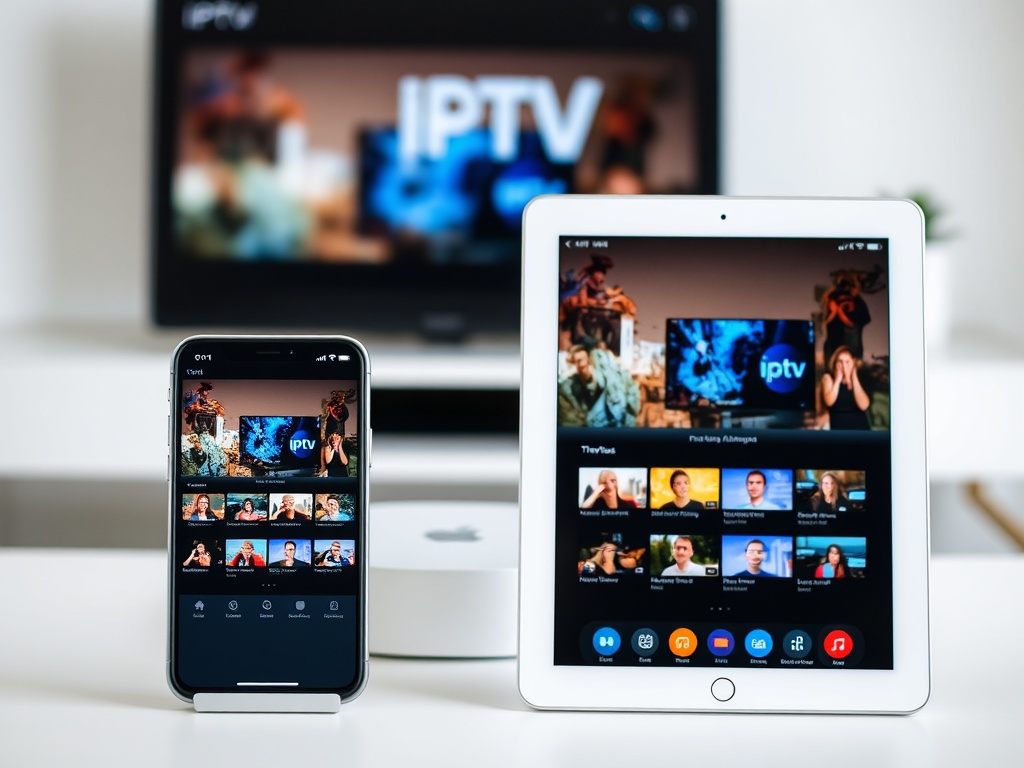
Preparing your system IPTV Enjoy premium streaming on your iOS devices wherever you go. Our detailed 2026 guide includes iPhone, iPad, and more. Apple TV Get optimal performance with easy-to-follow instructions.
What You'll Need Before Starting
Check these essentials to enjoy the finest iOS IPTV experience.
- iOS Device: iPhone (iOS 17+), iPad (iPadOS 17+), or Apple TV (tvOS 17+)
- Active IPTV Subscription: Your XtreamCube service credentials
- Stable Internet Connection: Minimum 25 Mbps for HD, 50+ Mbps for 4K content
- Apple ID: Required for App Store access
- Storage Space: At least 500MB available for app installation
Best IPTV Apps for iOS Devices in 2026
1. IPTV Smarters Pro
Discover the most complete IPTV solution for iOS devices:
- ✅ Native iOS and tvOS apps available
- ✅ Full EPG (Electronic Program Guide) support
- ✅ Picture-in-picture for multitasking
- ✅ AirPlay 2 support for casting
- ✅ Parental controls and favorites
- ✅ iCloud sync for settings across devices
2. GSE Smart IPTV
An IPTV player packed with power and versatility for expert users:
- ✅ Multiple playlist formats supported
- ✅ Advanced EPG customization
- ✅ Chromecast and AirPlay support
- ✅ Built-in media player with hardware acceleration
- ✅ Customizable interface themes
3. Flex IPTV
A modern IPTV app designed for user convenience:
- ✅ Clean, intuitive interface
- ✅ Excellent performance optimization
- ✅ Support for multiple playlists
- ✅ Good EPG functionality
- ✅ Regular updates and bug fixes
4. IPTV Extreme
An IPTV player with abundant features and extensive personalization:
- ✅ Advanced recording capabilities
- ✅ Time-shift functionality
- ✅ Multiple audio track support
- ✅ Customizable channel logos
- ✅ Backup and restore settings
iPhone and iPad IPTV Setup
Step 1: Install Your Preferred IPTV App
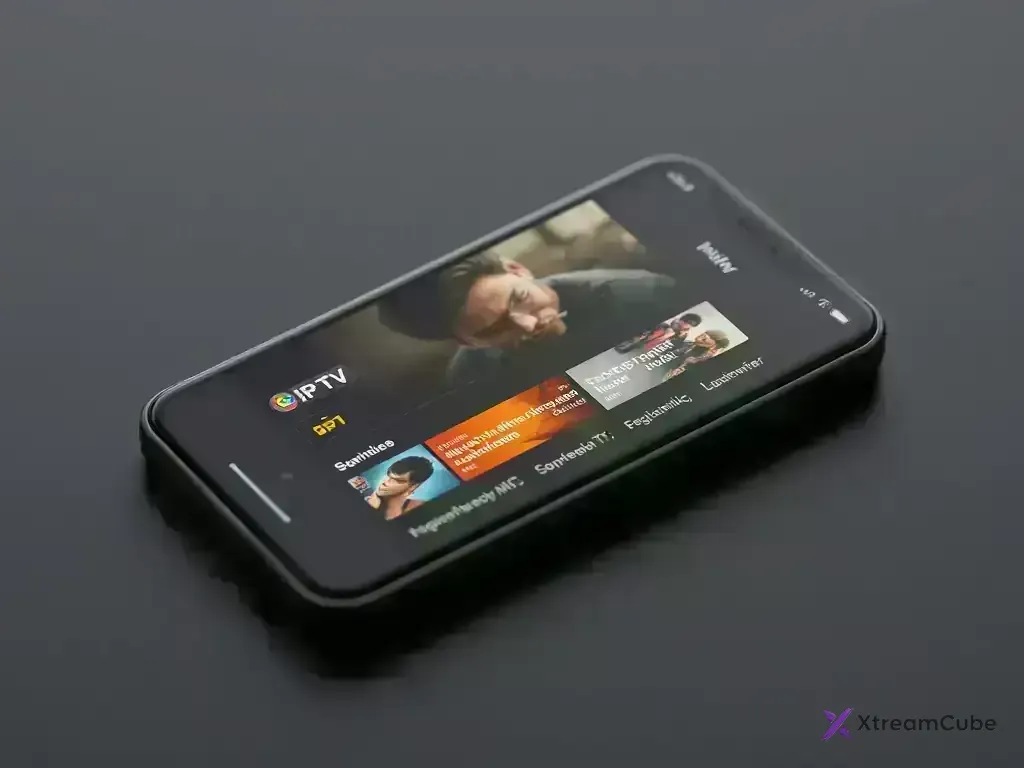
Download and install your selected IPTV application:
- Open the App Store on your iPhone or iPad
- Tap the search tab (magnifying glass icon)
- Type "IPTV Smarters" or your preferred app name
- Select the official app from search results
- Tap "Get" or the cloud download icon
- Authenticate with Face ID, Touch ID, or Apple ID password
- Wait for installation to complete
Step 2: Configure Your XtreamCube Subscription
Provide your IPTV service information within the app:
Using IPTV Smarters Pro:
- Launch IPTV Smarters Pro from your home screen
- Select "Login with Xtream Codes API"
- Enter your XtreamCube username
- Enter your password
- Input the server URL from your welcome email
- Tap "Login" and wait for channels to load
Using GSE Smart IPTV:
- Open GSE Smart IPTV from your apps
- Tap the three lines menu → "Remote Playlist"
- Tap the "+" button to add new playlist
- Choose "Add M3U URL" or "Xtream Codes API"
- Enter your XtreamCube credentials
- Tap "Add" and wait for channels to load
Step 3: Optimize App Settings
Adjust your IPTV app settings to enhance your mobile experience.
- Video Quality: Set to Auto, 720p, 1080p, or 4K based on your connection
- Streaming Protocol: Choose HLS for better mobile compatibility
- Buffer Size: Adjust for smoother playback on mobile networks
- Background Playback: Enable for audio-only listening
- Cellular Data: Configure limits for mobile data usage
- Download Options: Set up offline viewing if supported
Apple TV IPTV Setup
Step 1: Install IPTV Apps on Apple TV
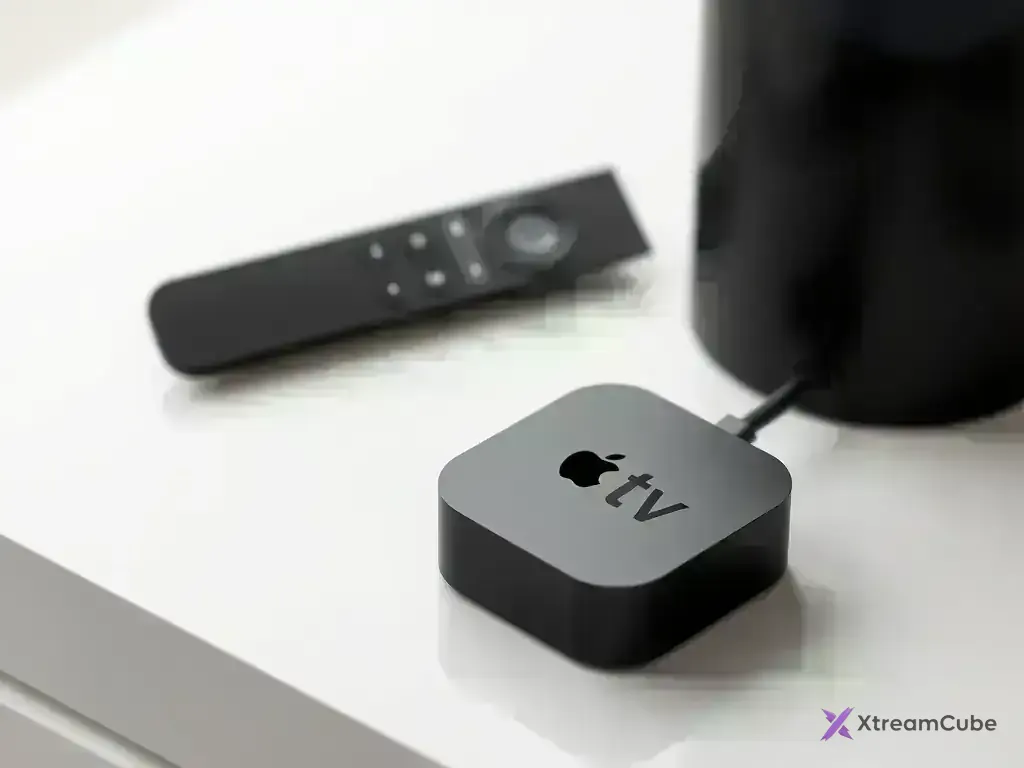
Set up IPTV on Apple TV to enjoy content on a larger screen.
- Navigate to the App Store on your Apple TV
- Use the search function (magnifying glass icon)
- Search for "IPTV Smarters" using Siri Remote or voice search
- Select the app from search results
- Click the touchpad to download and install
- Wait for installation to complete
- Launch the app from your Apple TV home screen
Step 2: Configure IPTV on Apple TV
Set up your XtreamCube service on Apple TV.
- Open IPTV Smarters Pro on Apple TV
- Select "Login with Xtream Codes API"
- Use the on-screen keyboard to enter your username
- Enter your password carefully
- Input the server URL from your welcome email
- Navigate to "Login" and click the touchpad
- Wait for channels to load (may take 2-3 minutes)
Step 3: Apple TV Specific Settings
Improve your IPTV experience on Apple TV.
- Video Resolution: Set to 4K HDR for supported content
- Audio Format: Choose Dolby Atmos or Dolby Digital
- Subtitle Appearance: Customize size and color
- Parental Controls: Set restrictions using Screen Time
- Network Settings: Prefer Ethernet for 4K streaming
Advanced iOS IPTV Features
AirPlay and Screen Mirroring
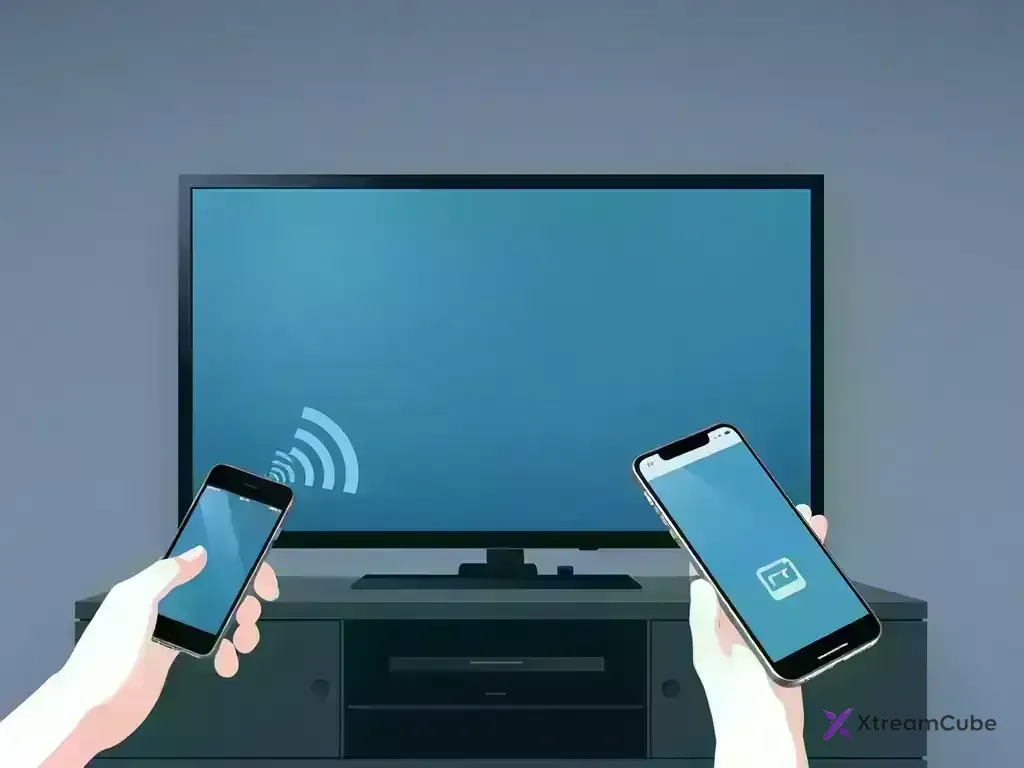
Stream content from your iOS device to Apple TV or AirPlay-compatible devices.
- Open Control Center on your iPhone or iPad
- Tap the Screen Mirroring icon
- Select your Apple TV or AirPlay-compatible device
- Launch IPTV app and start streaming
- Use picture-in-picture for multitasking
iCloud Sync and Multi-Device Support
Maintain uniformity in your IPTV experience on every Apple device.
- Enable iCloud in your device settings
- Sign in with the same Apple ID on all devices
- Sync favorites, playlists, and settings
- Resume watching across different devices
- Share subscriptions with Family Sharing
Offline Viewing and Downloads
Watch media without needing internet access.
- Use apps that support offline downloads
- Download content over WiFi before traveling
- Manage storage space efficiently
- Set up automatic deletion of watched content
Troubleshooting iOS IPTV Issues
App Installation Problems
If IPTV apps cannot be installed:
- Check if your iOS version is compatible (iOS 17+ recommended)
- Ensure you have sufficient storage space
- Sign out and sign back into your Apple ID
- Restart your device and try again
- Check your internet connection
Channels Not Loading
When channels do not appear or cannot play:
- Verify your internet connection is working
- Check that your XtreamCube subscription is active
- Double-check login credentials for accuracy
- Try switching to a different server URL
- Restart the IPTV application
- Force quit and restart your iOS device
Buffering and Quality Issues
For seamless streaming on your iOS gadgets.
- Test your internet speed (must be 25+ Mbps)
- Switch from cellular to WiFi when possible
- Lower video quality from 4K to 1080p or 720p
- Close background apps consuming bandwidth
- Reset network settings if issues persist
- Try streaming during off-peak hours
Audio/Video Sync Problems
Fix issues related to lip-sync and video playback:
- Check your device's audio settings
- Try different audio output formats
- Disable spatial audio if causing issues
- Update your iOS or tvOS to the latest version
- Restart both the app and your device
iOS-Specific Tips and Tricks
Using Siri Voice Commands
Control your IPTV viewing with voice control.
- "Hey Siri, open IPTV Smarters"
- "Hey Siri, play [channel name]"
- "Hey Siri, switch to 4K quality"
- "Hey Siri, show me sports channels"
Picture-in-Picture Mode
Handle multiple tasks while watching IPTV.
- Start playing content in your IPTV app
- Swipe up from the bottom to go home
- Video continues in a small window
- Resize and position the PiP window
- Switch between full screen and PiP easily
Home Screen Integration
Enhance your iOS home screen with IPTV content.
- Add IPTV app widgets to your home screen
- Create shortcuts for favorite channels
- Use the TV app for unified content discovery
- Add IPTV app to your dock for quick access
Security and Privacy on iOS
Ensure privacy protection when streaming on Apple devices.
- Use a reputable VPN service (App Store available)
- Keep your iOS and tvOS updated regularly
- Only download apps from the official App Store
- Use strong, unique passwords for accounts
- Enable two-factor authentication for Apple ID
- Review app permissions in Settings
Conclusion
Setting up IPTV on iOS devices enables seamless streaming across your entire Apple ecosystem. With your XtreamCube subscription correctly configured, you’ll experience premium content on iPhone, iPad, and Apple TV with superior quality and reliability. Apple’s hardware optimization and app ecosystem ensure the finest IPTV experience.
Need more help? Contact our 24/7 support team for customized help with your iOS configuration.